
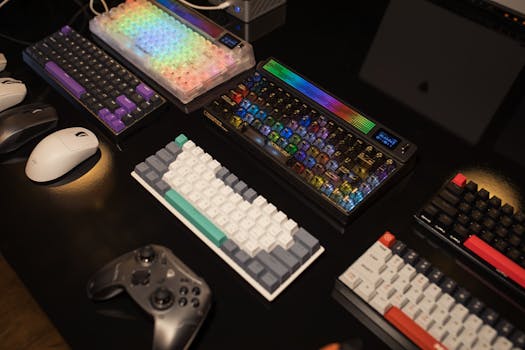
Practical Guide to Mastering Game Controls and Settings
Adjusting your game controls isn’t just a technical task — it’s the key to unlocking better precision and faster reactions in every session you play.
Settings can influence how quickly you respond, whether you notice game hints, and how comfortable it feels to play for hours. Small changes produce big results.
With so many games and preferences, finding the perfect setup can feel overwhelming. This guide breaks down every step for optimizing controls and settings to fit your playstyle.
Customize Input Devices for Consistent Results Every Session
Starting with input can boost your immediate gameplay experience. Adjusting hardware and software settings gives you more predictable outcomes, whether you use a controller or keyboard.
Decide if you want fast or controlled movements. Many players say, “Lower sensitivity helps me aim precisely,” while others prefer quicker turns for competitive shooters or fast-paced action.
Setting Up Your Controller or Mouse
Plug in your preferred input device, then launch any game. Open the controls menu, and look for sensitivity options labeled “pointer speed” or “look/aim sensitivity.”
Gradually raise or lower settings by one or two points, then play for five minutes to test how it feels. If overshooting targets or struggling with movement, fine-tune again.
Don’t rush this step. Players often adjust too quickly, so spend time comparing settings before settling on a configuration that feels natural during gameplay sequences.
Keyboard Shortcuts and Rebinding Techniques
Locate your game’s keybinding section in the settings. Change crucial actions—like “jump,” “reload,” or “melee”—to keys under your fingertips. For example, use spacebar for jump, Q for quick swap.
After rebinding, practice with your new key map for at least one full match. Muscle memory builds with repetition, and giving commands quick access can mean faster reactions under pressure.
If your hands feel cramped or slow, swap keys around again. Staying comfortable is essential: tired fingers reduce reaction time and accuracy in any gaming session.
| Input Device | Setting Type | Typical Range | Best For |
|---|---|---|---|
| Mouse | Sensitivity (DPI) | 400-3200 | Precision shooting |
| Controller | Analog Stick Dead Zone | 5-20% | Prevent drift, steady aim |
| Keyboard | Key Mapping | Customizable | Quick actions |
| Gamepad | Vibration Strength | 0-100% | Tactile feedback |
| Trackpad | Tap-to-Click | On/Off | Portable play |
| Takeaway: Experiment with one input at a time—test for comfort before moving on. | |||
Optimizing Visual Settings Increases Comfort and Game Awareness
Adapting your display and graphics settings ensures you never miss clues and can game comfortably for hours. Tweak brightness, contrast, and field of view to suit your eyes and preferences.
Boosting image clarity helps track fast movement. Lower resolution or frame rates may reduce detail, but stable, coherent visuals always outperform flashy effects for quick decision-making.
Fine-Tune Brightness and Contrast
Open video settings and slide brightness until dark areas are visible, but not washed out. Contrast should create defined shadows, revealing game-world details like hidden doors or enemy silhouettes.
Some players say, “I adjust until I can see both dark and light spaces at the same time.” Use in-game scenes with deep shadows and bright lights for testing every tweak you make.
- Set brightness to a level where black areas appear gray but white details stand out. This balance prevents eyestrain and sneaking enemies from blending into the environment.
- Increase contrast if objects blend into the background. Clear outlines mean easier target spotting and faster threat recognition in fast-paced game moments.
- Lower gamma if colors appear faded. Gamma impacts how shadows and bright lights interact, so reducing it sharpens visual separation between players, objects, and backgrounds.
- Enable colorblind mode if needed. Different color filters help distinguish allies and enemies—essential for accessible, competitive play across genres that use vibrant game controls and cues.
- Check results by walking through several game scenes, noting any spots that look dull or blindingly bright. Revisit adjustments after a break to spot shifts in visual comfort.
Commit to one setting per session, testing endurance over time. Eyestrain or headaches mean you should change the settings for comfort and safety.
Adjusting Field of View (FOV) for More Game Awareness
Find the FOV slider in advanced graphics settings. Higher values show more game world, but lower FOV can boost focus. Adjust based on your display size and comfort zone.
Try raising FOV in wide, open games—”I see more threats coming,” players say—then lower it in narrow shooters for less distortion. Match FOV to your space, not just game default.
- Set FOV to 90–110 on wide monitors to capture more enemies or teammates per glance. The wider the view, the less likely you’ll get surprised by flanking moves.
- Use FOV below 85 for smaller displays or focused story modes. Tighter FOV can reduce visual clutter, sharpening attention for single-player games with complex environments.
- Test for motion sickness by playing five minutes at each setting. If experienced, reduce changes to FOV until comfort returns and stick to what keeps your eyes and head steady.
- Capture screenshots before and after changes for fast visual comparison. If scenes feel too packed or too empty, readjust until recognition feels intuitive instead of forced.
- Retest after updating drivers or installing new monitors—game controls, field of view, and hardware interact, so one change may affect another subtly over time.
Document your comfort zone; keep settings consistent across games to reinforce natural reactions, especially in genres with similar playstyles or mechanics.
Fine-Tuning Audio for Faster Reactions and Clarity
Proper audio leads to precise, timely responses by alerting you before threats or events appear onscreen. Tweak music, effects, and dialogue volumes to track every audio cue quickly.
Good sound setups make a big difference. Subtle footstep cues, reloading sounds, and directionality all help you outmaneuver competitors or spot in-game events with reliable accuracy.
Tuning In-Game Audio Levels
Access your game’s audio menu and separate master, effects, and dialogue volume sliders. Prioritize effects over background music to catch every reload, step, or hint noise.
Test your changes by walking into a busy virtual location. If dialogue drowns out gunfire, adjust until effects sound crisp. Listen for low rumbles or footsteps behind you before leaving menus.
Players routinely use this formula: “Turn effects to 70%, music to 30%.” Tailor fixes for your headset sensitivity, room noise, and comfort to match how you notice game controls feedback.
Directional Audio and Headset Setup
Enable spatial sound options, like surround or 3D audio, inside the game or system menu. Then, position your headphones correctly and test with in-game movement or opponent tracks.
Notice enemy approach cues on your left or right—these subtle differences allow you to act before spotting the player on-screen. If directionality feels vague, try resetting headset positioning.
Revisit your audio setup regularly, especially after hardware swaps or big updates. Familiar directional cues let you react naturally, keeping your awareness high regardless of the game type.
Building Effective Habits for Smooth Gameplay Transitions
Creating routines with your game controls makes reaction time more predictable. Strong habits come from repetition, so design simple rituals before and after each session for reliable improvement.
Establishing a pre-game checklist trains your mind and body. A sample routine might include adjusting chair position, testing headphones, and running through a quick warm-up round.
Warming Up With Key Moves
Jump into a practice lobby or training mode after shifting game controls. Spend two minutes moving, reloading, and targeting. Focus on comfort—stop if something feels off and troubleshoot immediately.
After warmup, notice any delays or awkward hand positions. “When I can move and click without thinking,” players say, “I know the setup works.” Record your results for consistency across play sessions.
Use the same warm-up script every day. Habits build confidence and anchor your response to familiar cues, boosting long-term muscle memory and reducing mistakes under stress.
Post-Session Adjustments for Future Growth
Reflect on what worked or felt clunky during your last match. Did your game controls cause mistakes, fatigue, or missed cues? Note every issue in a simple logbook once play wraps up.
If a problem repeats—like hesitating when turning or missing easy jumps—tweak your setup before next session. “I shifted jump to spacebar and mistakes dropped,” is common feedback from improvement logs.
This post-game review, even if brief, speeds up progress by reinforcing positive setups and targeting small flaws before they become bigger issues in high-pressure matches.
Real-Life Scenarios: Adapting Game Controls Under Pressure
Learning how to tweak game controls during live matches adds lasting value to your skills. Consider real scenarios, like sudden hardware swaps, tournament pressure, or unexpected in-game setting resets.
Strategy adapts to unpredictable events. For example, if your mouse sensitivity changes mid-battle, stay calm: pause, revisit settings, and follow the familiar steps you’ve established for finding your balance.
Unexpected Changes Mid-Game
If a controller battery dies or keybinding resets to default, breathe and focus on recreating your go-to setup. Quick memory of your preferred layout can save critical moments in the heat of competition.
Players recount, “I set my mouse DPI back to 800 instantly when it glitched”—a clear, practiced fix. Being prepared for surprises builds confidence and keeps frustration at bay.
The more you rehearse these corrections, the easier it feels to reset under pressure. Restoration routines help transform stress into a chance for quick, clearheaded adaptation in any game.
Handling Tournament or Group Play Dynamics
In team-based events, syncing game controls with your teammates’ preferences makes communication smoother. Agree on key voice chat or ping commands before starting a match, even if some players use different inputs.
“Let’s all bind our ultimate to Q for consistency,” is a sample pre-game callout. This reduces mix-ups and lets everyone know exactly how to support or warn each other fast.
Having a shared vocabulary and similar button maps flattens the learning curve, especially for new players or pickup teams that rotate members during competitions or co-op sessions.
Game Control Optimization Checklist and Best Practices
Taking action with a checklist streamlines your game controls setup and prevents crucial oversights. Follow this routine at the start and end of each session to lock in improvements.
- Check hardware: Ensure your controller or mouse is charged and connected to avoid dropped inputs or interruptions that break gameplay flow and immersion when it matters most.
- Review keybindings: Confirm your custom layout matches what you practiced. Mismatched controls create instant frustration, especially when muscle memory triggers the wrong command.
- Adjust audio: Confirm volume and directionality, particularly in team settings. Subtle sounds signal enemy moves or partner requests; don’t let poor mixing cost you a match or fun story beat.
- Set visuals: Verify brightness, contrast, and FOV after every update or new game install. Consistency means you spend less energy adapting and more energy playing at your peak.
- Test in-game: Run a five-minute warm-up. Address surprises immediately. Unresolved issues get worse as play continues, turning easy wins into distractions or stress.
Each list item solidifies a single positive habit. Consistently reviewing these steps each time speeds up setup, minimizes frustration, and keeps your game controls sharp and reliable.
Adapting to New Games: Translating Familiar Game Controls
Switching to different games can trip up seasoned players, as every title presents unique layouts and control quirks. The key is translating familiar moves and cues into the new environment systematically.
Copy your favorite keybindings or controller settings into each title as a starting point. Familiarity reduces learning curves—players say, “I always map reload to R, no matter the game.”
Comparing Default Layouts vs. Custom Configurations
Examine your new game’s default control map carefully. Mark functions that don’t match your habits, then reassign them to match what your hands already expect from previous experiences.
After rebinding, repeat old practice routines—tap, reload, aim—until the new controls feel as smooth as your last setup. This process cuts down on costly mistakes or reaction time delays.
Keep notes on what each new title calls its settings menus—some hide advanced options inside accessibility or advanced submenus, so scouting ahead saves time and frustration.
Recognizing New Game Genres’ Control Logic
Genre shifts—like moving from a platformer to a shooter—mean you’ll need to learn new button combinations for core actions. Don’t expect what worked before to fit every scenario.
For each switch, try scripts like, “Jump now, check position, look left,” to build fresh muscle memory. Genre-specific tweaks help your hands and brain adapt efficiently.
Switching genres doesn’t erase what you’ve built—use analogy: steering a car or a bike requires different postures, but confidence grows with practice. Carry at least one control habit forward each time.
Summary and Actionable Takeaways for Every Game Session
Throughout this guide, each game controls adjustment ties back to faster, more rewarding play. Whether setting mouse sensitivity or rebinding keys, every action targets comfort, speed, and personal fit.
Optimized settings reduce mistakes, build confidence, and help you adapt to changing genres or group dynamics. Tuning audio, video, and input means you notice clues, react faster, and strengthen muscle memory.
Before every match, check everything: devices charged, keys mapped, volumes set. Habits pay off every round. Remember—game controls only matter if they work for you each moment at play.